
Precursor-centered inspection
Add the peptide sequence and charge state you want to verify, then inspect only the targeted signal instead of processing the full experiment.
DIA peak inspection
Targeted DIA peak inspection for the precursor you care about.
SpectraLens is built for the moment when you do not want to run a full DIA pipeline. Load raw files, enter the precursor you care about, and quickly inspect the MS1/MS2 peak evidence.
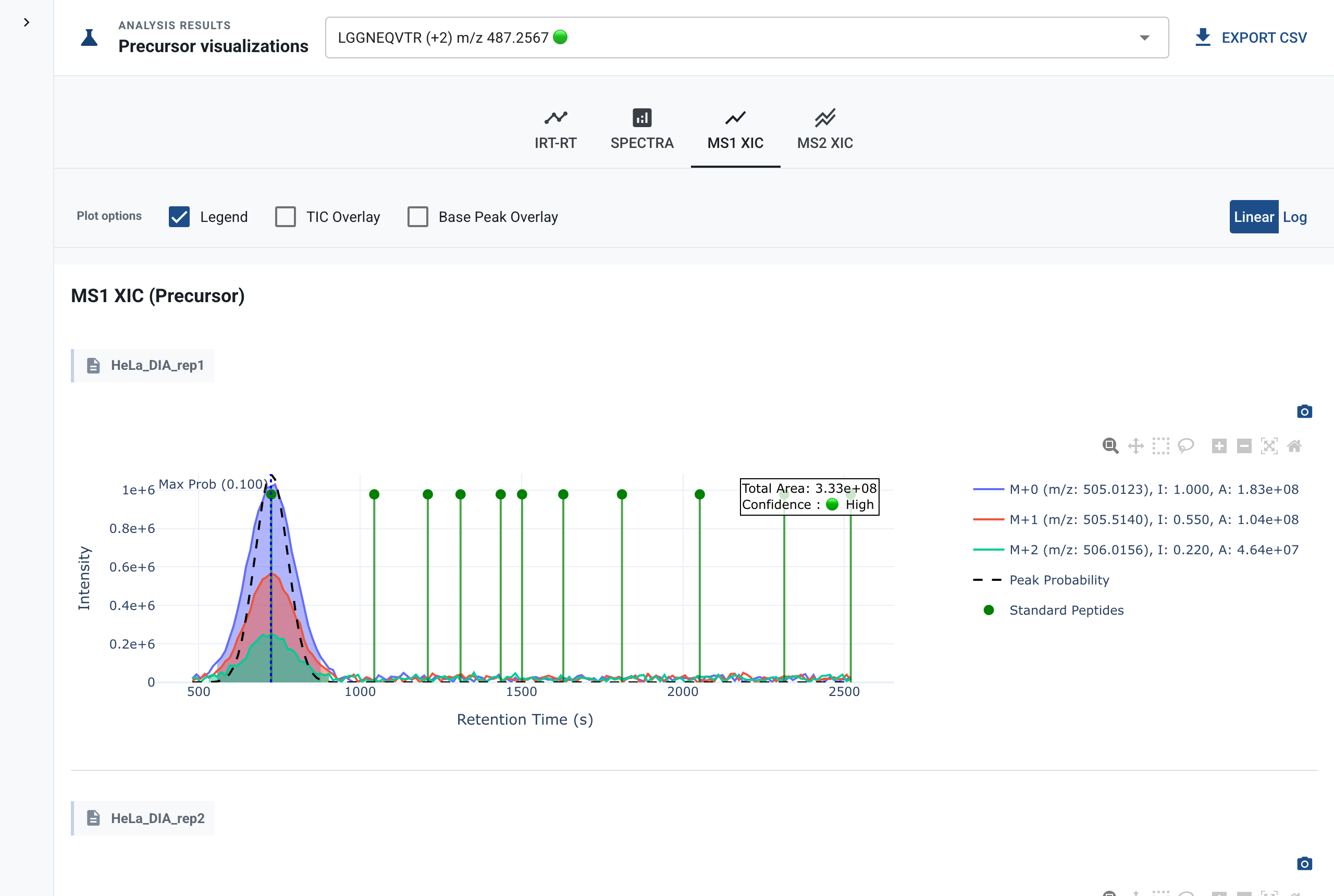
Why it exists
SpectraLens is for targeted visual confirmation: a few precursors, selected raw files, and immediate chromatographic evidence without waiting for a full DIA analysis workflow.
Add the peptide sequence and charge state you want to verify, then inspect only the targeted signal instead of processing the full experiment.
Review precursor-level MS1 XICs and fragment-level MS2 XICs with linear or log scale, legends, and optional TIC or base peak overlays.
Use model-based iRT and charge predictions to seed a focused search window when library information is incomplete.
Compare experimental and predicted spectra so a peak can be checked with chromatographic and fragment evidence together.
Create a local workspace, add raw files, and reuse converted files during repeated precursor checks.
Export analysis results as CSV for review notes, sharing, or downstream manual curation.
Workflow
Choose a local workspace for raw files, converted files, peptide lists, and analysis settings.
Select DIA raw files. SpectraLens prepares local analysis-ready files and keeps their status visible.
Paste peptide sequences, optional charge suffixes, UniMod modifications, or supported glycan notation.
Run targeted extraction. Setup collapses into the icon rail so the results take the full window, then switch between iRT-RT, spectra, MS1 XIC, and MS2 XIC tabs.
Docs
This page keeps the working notes and user docs together because SpectraLens has a focused surface area.
SpectraLens is distributed as a desktop application for macOS and Windows. Download the binary for your platform, launch it locally, and create a workspace to inspect DIA precursor peaks.
Due to macOS Gatekeeper security settings, you may need to manually approve SpectraLens because the current macOS build may not have an Apple Developer code signature.
After approving the app, open SpectraLens again from Finder or Launchpad.
Start by creating or opening a local workspace. SpectraLens keeps selected raw files, target precursors, settings, and exported results inside that workspace.
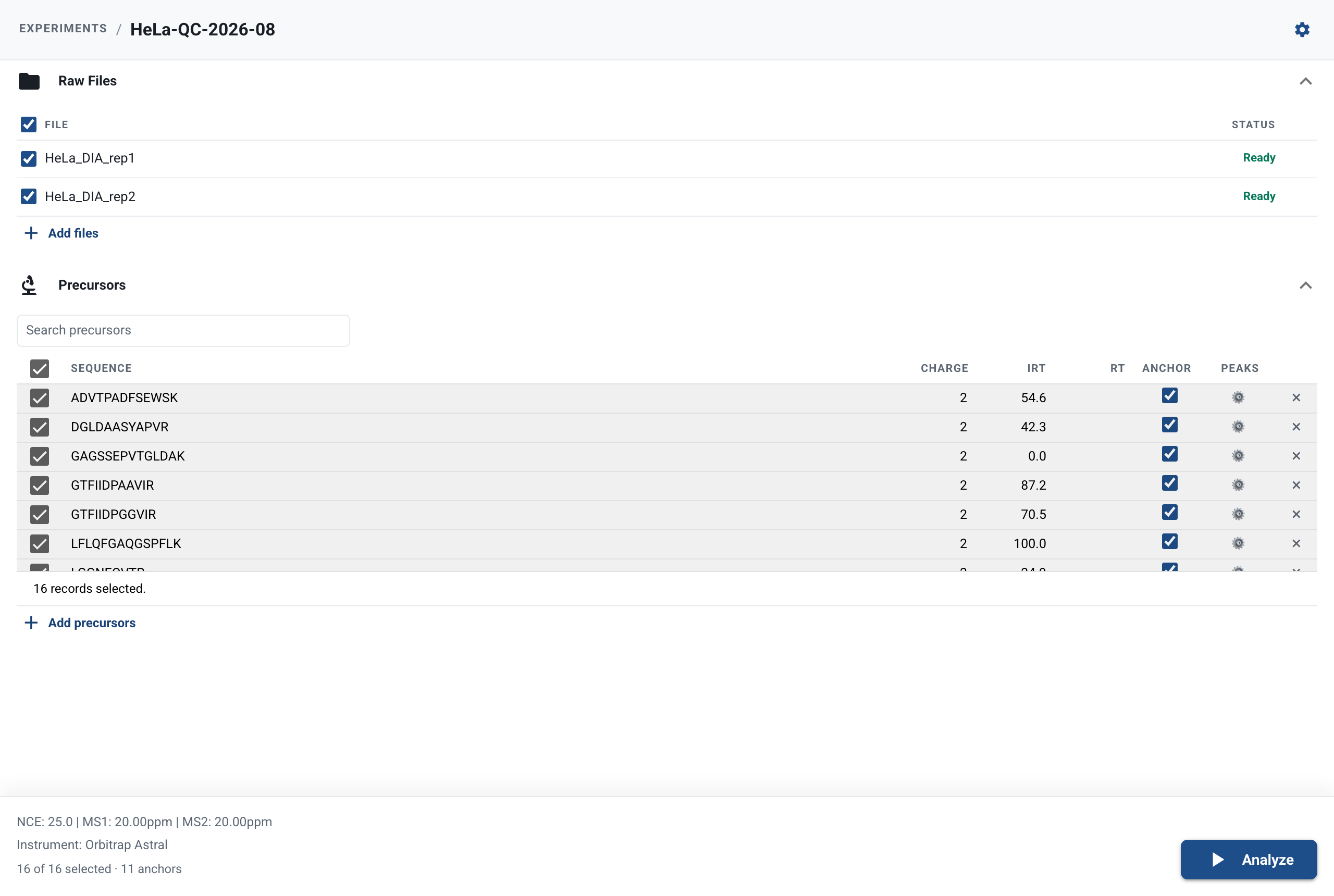
Open the Raw Files panel, click Add files, and choose the raw files you want to inspect. After the files are listed, tick the checkbox for the file or files that should be included in the targeted analysis.
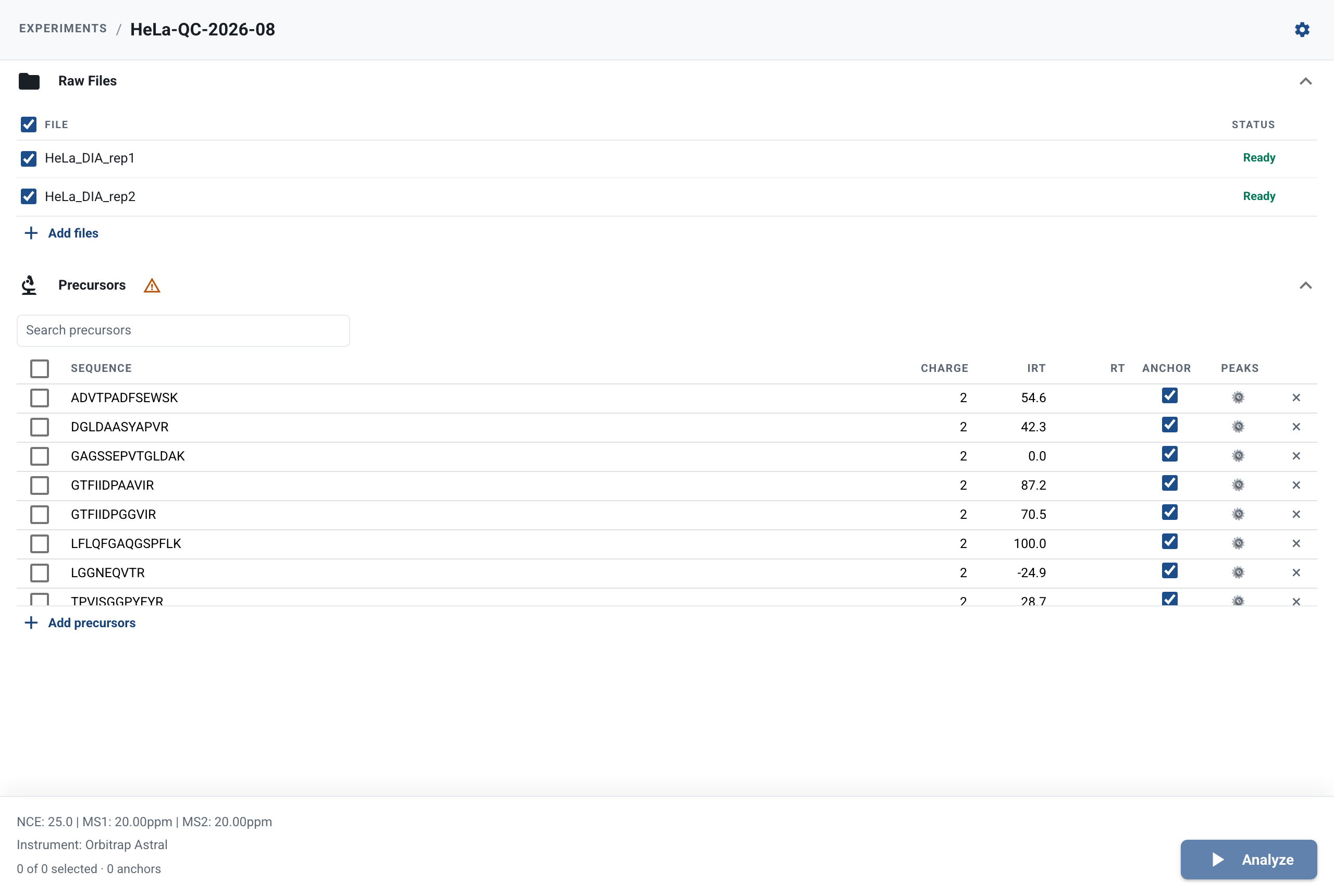
Click Add precursors below the precursor list to open the sequence input dialog.
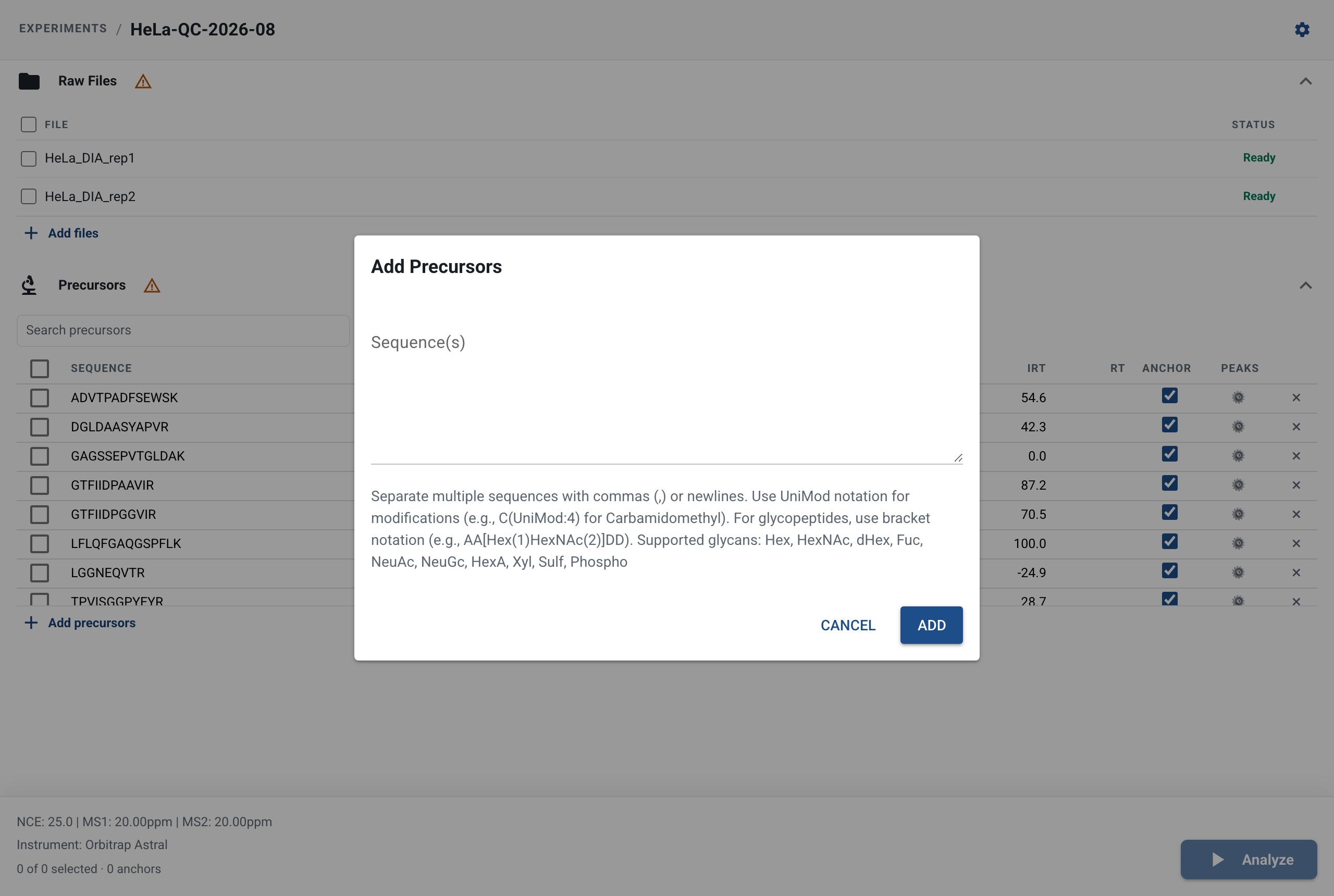
Add the sequence or precursor you want to check, then click Add. Use UniMod
notation for modifications, such as C(UniMod:4). Separate multiple sequences with
line breaks or commas. Add a charge state after a period, such as PEPTIDESEQ.2.
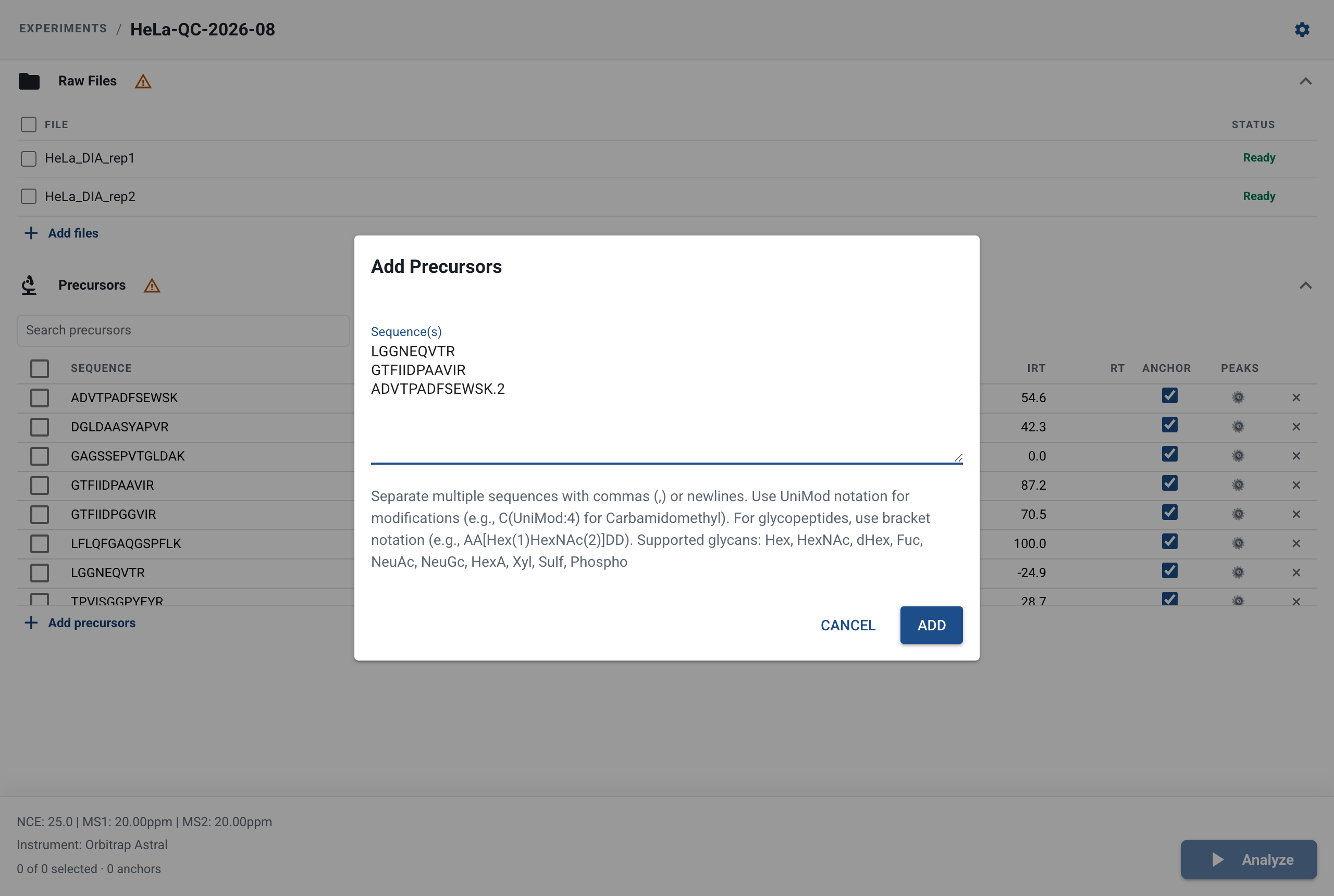
Select the sequence rows you want to analyze. Anchor precursors are used for RT-iRT mapping. SpectraLens automatically fills many settings from the raw file metadata, but you can adjust tolerances, instrument, NCE, RT window, and fragment limits in Experiment Settings when needed. Click Analyze to extract and inspect the target peaks. Setup collapses into the icon rail once the run succeeds, so the results get the full window.
Paste one sequence per line or separate multiple entries with commas. Add a charge suffix with
.2 or .3 when you want a specific charge state. If the charge is omitted,
SpectraLens predicts likely charge states and iRT values.
PEPTIDESEQ.2
PEPC(UniMod:4)TIDESEQ.3
AA[Hex(1)HexNAc(2)]DD
PEPTIDES(UniMod:21)EQ,PEPTIDEM(UniMod:35)SEQSpectraLens keeps precursor rows, local file status, analysis settings, and extracted result tables inside the selected workspace. Use Export CSV from the visualization panel to save a reviewable result table for downstream notes or manual curation.
SpectraLens uses GitHub Discussions and Issues for community support, bug reports, and feature ideas.